
This page guides you through the required steps to ingest Cello’s Unique Campaign Codes (UCC) into HubSpot using Typeform forms.
Create a form with a hidden UCC field in Typeform
Create a new form in Typeform
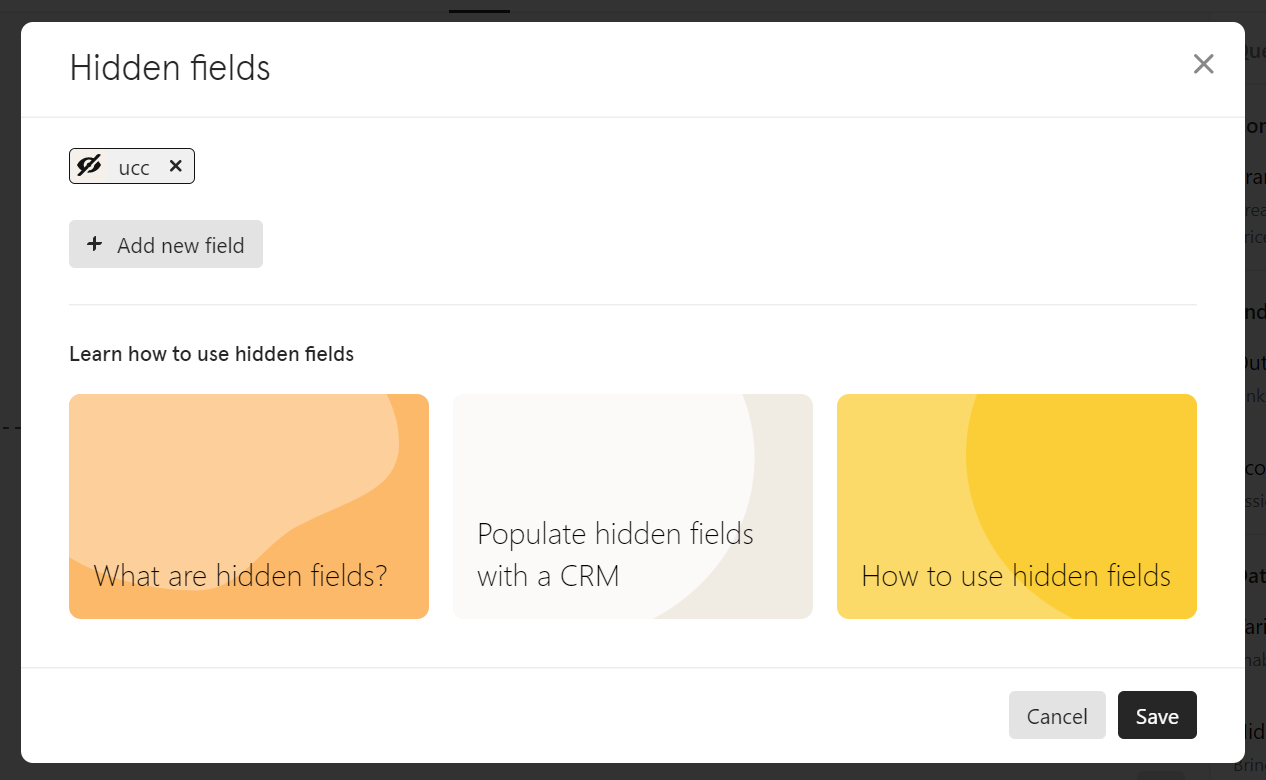
On the initial question in your form, go to "Hidden Fields" via Logic -> Hidden Fields on the panel on the right
Add a new field named "ucc" and click Save
Setup of Sync from Typeform to HubSpot
Navigate to the "Connect" Section in the header of Typeform and connect HubSpot.
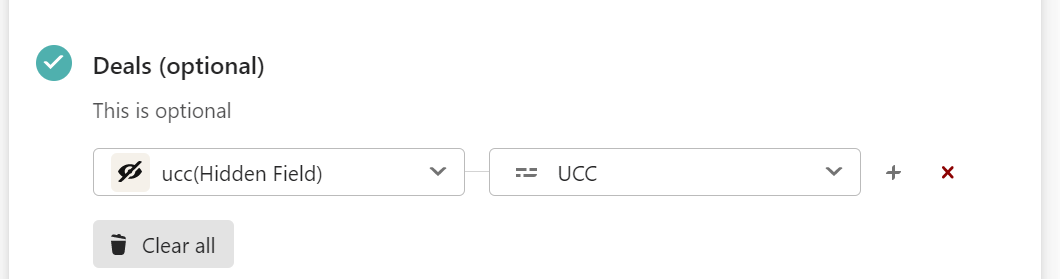
After the authorization is done, you can select the HubSpot object to which you want to sync the UCC. In the below example the UCC is synced to a deal in HubSpot. Note: You can also sync the UCC to multiple objects at the same time: contact, company and deals.
If you sync the UCC to a deal, you have to specify in which pipeline at which stage the deals should be created.
After finalizing the setup of the integration, save the settings and run a short test run.
Test the created Typeform and HubSpot integration
Open the created Typeform.
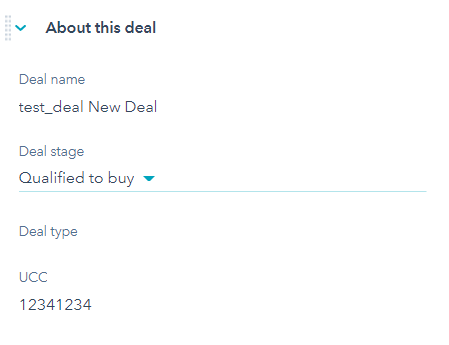
Add either "?ucc=12341234" or "&ucc=12341234" to the link depending on if there is already a "?" present in the link.

Submit the Typeform
Open HubSpot and check that the contact, company or deal was created and the UCC was synced correctly.
Further hints
You can also embed a Calendly in Typeform to allow customers to schedule e.g. a demo from the Typeform. Documentation can be found here